Projects Find My on a Stream Deck
Find My on a Stream Deck
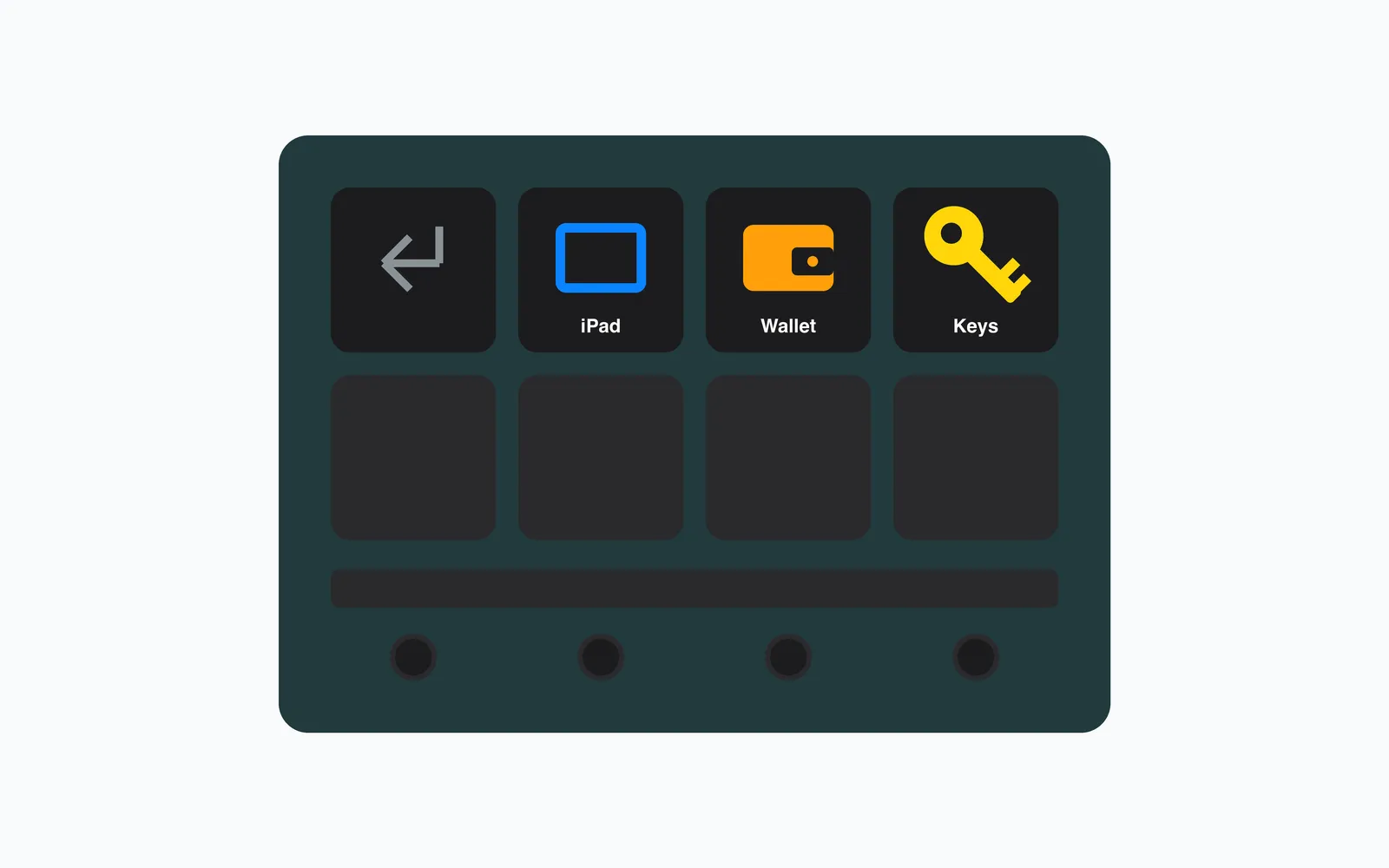
Press a key on my desk and my keys, wallet or iPad start ringing. Find My has no API for this. A small launcher drives the app through macOS accessibility and, for AirTags, finds the Play Sound button by its colour.
- Stack
- Objective-C · AppleScript · Python · NumPy · Pillow · Stream Deck
The short version
My keys, my wallet and my iPad all show up in Apple’s Find My, and Find My can make each of them ring. There is a Stream Deck on my desk. This project puts a key on it for each of the things I lose.
Find My has no API and no scripting dictionary. What it does have is an accessibility tree, and macOS lets a trusted app walk that tree and press things. This is the small amount of code needed to do that from a Stream Deck key, reliably, without granting permissions again every time I touch it.
Six items have trigger files in the repo: keys, wallet, passport, tech pouch, iPad and AirPods. Three of them have keys on the deck right now. Pressing one brings Find My to the front, picks the item and presses Play Sound. Any failure shows up as a notification banner rather than silence.
How it works
A Stream Deck key runs the built-in Open action on a one-line text file. The file says which Find My tab the item lives in and its name, for example Items|Keys. Those files carry their own extension, and a launcher app registers that extension with the system. Opening the file opens the launcher.
The launcher is a tiny compiled Objective-C app with no Dock icon. It reads the line, sends its output to a log, and replaces itself with the Python orchestrator. That orchestrator takes a lock file first, and a second press while one is running gets a banner and exits.
From there the two kinds of item take different routes, because Find My gives them different interfaces.
Devices have a context menu. The script control-clicks the row and Play Sound is the first entry, one arrow down and Return away.
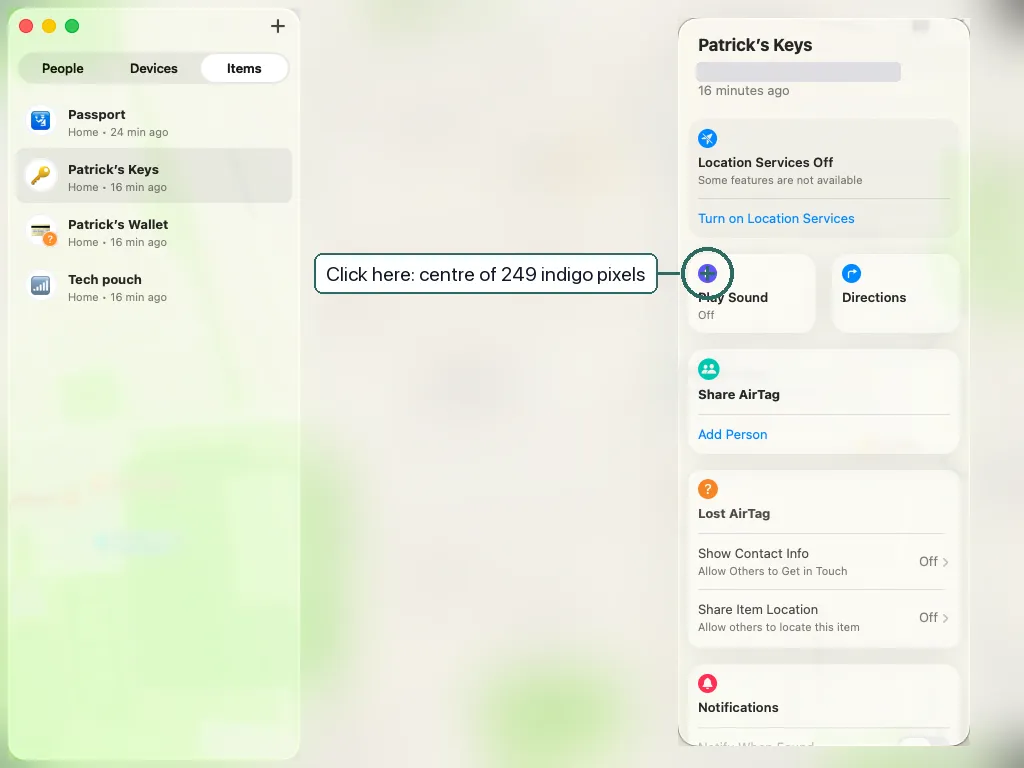
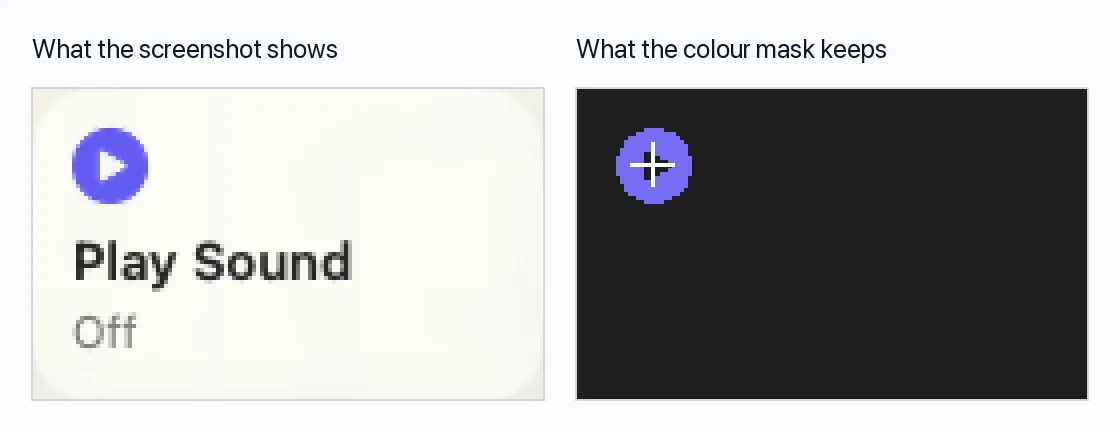
AirTags have no context menu. Their Play Sound button lives on the map card that opens from the item’s detail panel. The script selects the row, opens the card, screenshots that region of the window, and searches the pixels for the indigo of the play circle. NumPy masks pixels whose blue channel is high and whose red and green sit close together, clusters the hits, takes the largest cluster of at least forty pixels, and clicks its centre.
This is the card for my keys, captured while the script ran. I blurred the map and removed the address.
The script never reads the words “Play Sound”. It keeps only the pixels that match the colour of the button and throws the rest away. On this capture that left 249 pixels, all of them inside the play circle.
The AppleScript side is where most of the fragility lives. Find My’s tab bar sits fourteen groups deep in the accessibility tree, and the item list is seventeen deep. Each call is retried three times with a twenty-second timeout, and the map card is polled until its position stops moving before anything is clicked.
The same repo holds four sibling keys that build and install Linglow on my phone, iPad and simulator. Those need no accessibility rights, and each has its own plain launcher app.
The long version
The interesting problem was not the clicking. It was macOS permissions.
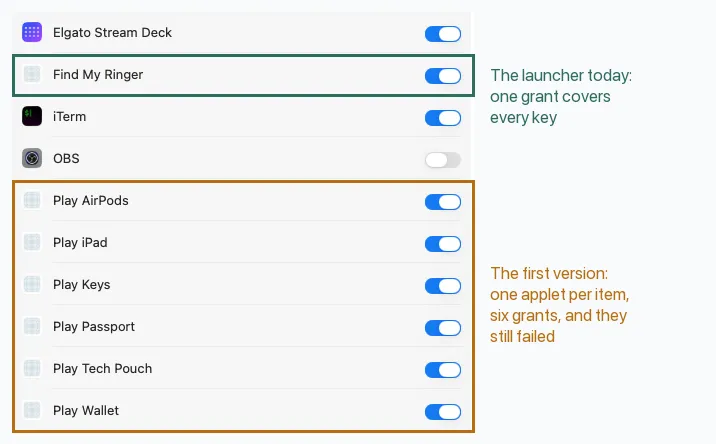
My first version compiled one small AppleScript applet per item, six apps in all. Each one needed Accessibility granted by hand, and the AirTag ones needed Screen Recording too. Worse, they kept failing with error -25211, “osascript is not allowed assistive access”, no matter which toggles I flipped.
The cause is how macOS decides who is responsible for a request. When an applet runs do shell script, the chain of responsibility breaks and the request is attributed to osascript itself, which is not something you can grant permissions to. The applet is not the process being judged, and toggling it on and off changes nothing.
The fix is to never break the chain. The launcher is compiled code that calls exec directly into Python. Python, and every osascript and click event it spawns, stays attributed to the app I granted. Every trigger file opens that same app. That means one grant to make, and it covers every item I add later. All the logic lives in the Python and the AppleScript, which I can edit freely. Only rebuilding the app gives it a new code identity and invalidates the grant.
That is the whole reason the trigger files exist. They let a single app stand behind any number of keys.
Both versions are still visible in my Accessibility settings. The six “Play” applets from the first attempt sit a few rows below the one launcher that replaced them.
Two things I would still change. The colour match is tuned to the current Find My design, and a new accent colour in a macOS update would break it. And the accessibility paths are hard-coded nesting depths, which is the kind of thing that survives until it does not. Both are the price of automating an app that was never meant to be automated, and for now I am happy to pay it.